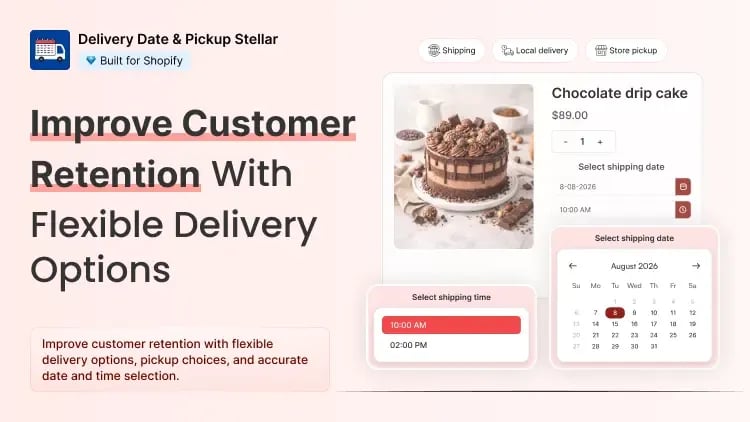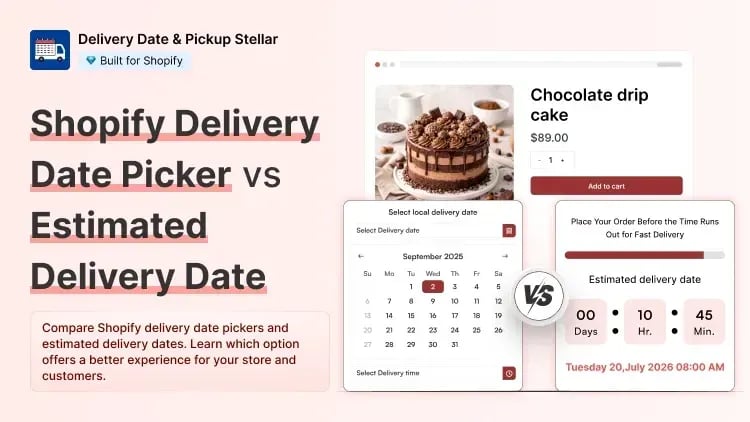
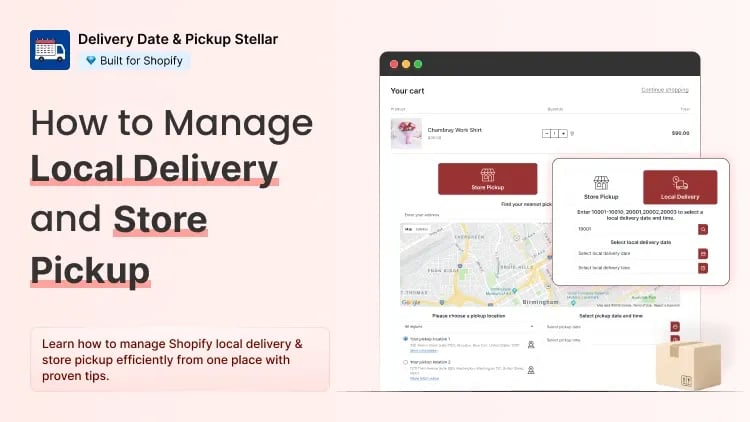
Customers do not always want to wait several days for standard shipping.
Someone living near your store may prefer same-day local delivery. Another customer may want to place an order online and collect it from your nearest location. Shopify provides basic local delivery and store pickup options. However, these native settings do not offer enough scheduling control for businesses that need customers to choose a delivery or pickup date and time.
This is where Delivery Date & Pickup Stellar can help.
The app lets you manage shipping, local delivery, and store pickup from one place. Customers can select their preferred delivery method, location, date, and time before completing their order.
In this guide, you will learn:
- The difference between local delivery and store pickup
- The limitations of Shopify’s native settings
- How to set up local delivery with Stellar
- How to set up store pickup with Stellar
- Which scheduling rules you should configure
What is Shopify Local Delivery?
Shopify local delivery allows you to deliver orders directly to customers who live near one of your business locations.
You can decide which areas you serve using:
- Postal or ZIP codes
- A delivery radius
- Minimum order values
- Different delivery charges
What is Store Pickup on Shopify?
Store pickup allows customers to place an order online and collect it from one of your physical locations.
The customer does not need to pay or wait for shipping. They can choose a convenient pickup location and collect the order once it is ready.
Store pickup is useful for:
- Retail stores
- Grocery businesses
- Bakeries
- Florists
- Restaurants
- Made-to-order businesses
- Businesses with multiple branches
How to Set Up Local Delivery with Stellar
Step 1: Install and Open Stellar
Install Delivery Date & Pickup Stellar from the Shopify App Store.
After installation:
- Open your Shopify admin.
- Go to Apps.
- Select Delivery Date & Pickup Stellar.
- Open the app’s Settings page.
- Make sure the app is enabled.
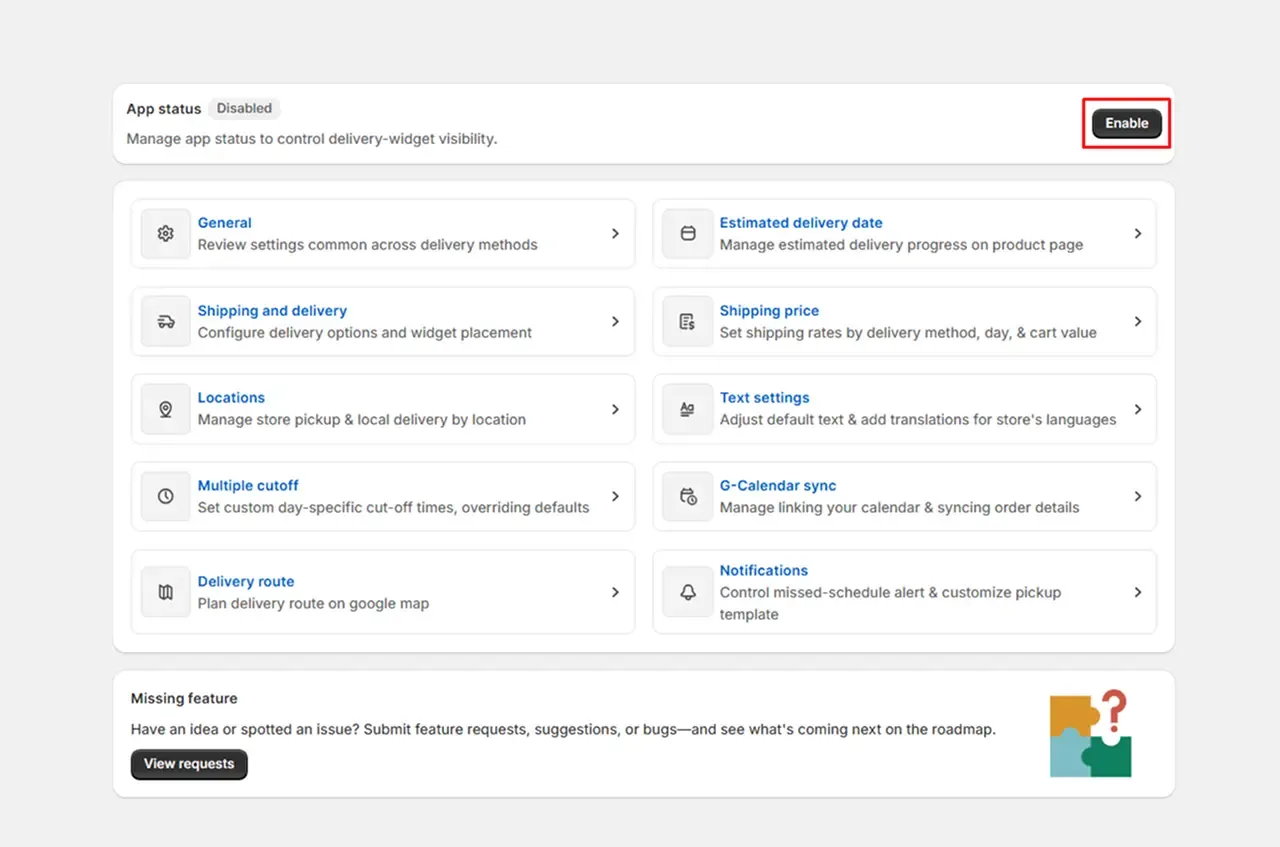
Once the app is active, you can start adding locations and delivery rules.
Step 2: Add or Sync Your Store Locations
Stellar can fetch the locations already added to your Shopify store.
To check your locations:
- Open the Stellar app.
- Go to Settings.
- Select** Locations**.
- Review the available store locations.
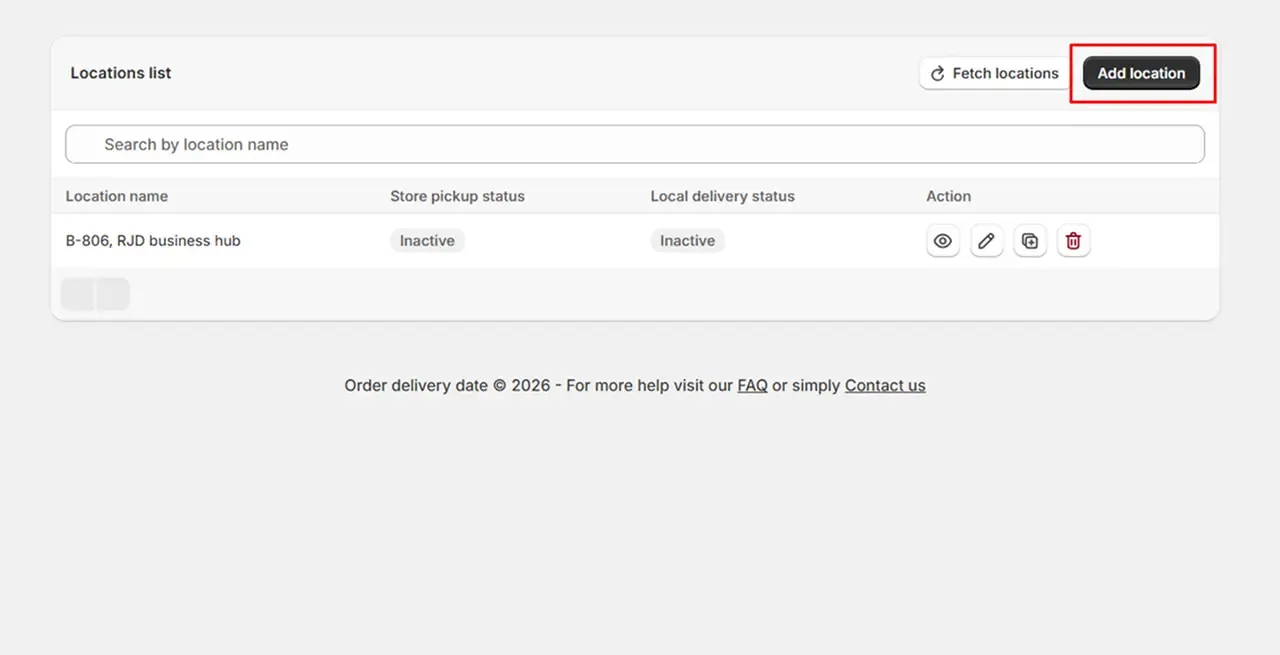
Search for the locations to which you want to provide local delivery & store pickup. You can also create a new location by clicking Add Location, entering the location address, and saving it.
Make sure every location has the correct:
- Location name
- Address
- City
- State or province
- Country
- Postal code
- Time zone
These details help the app calculate local delivery availability correctly.
Step 3: Enable Local Delivery for a Location
After adding your location:
- Open Settings > Locations.
- Find the location you want to use.
- Click the Edit or pencil icon.
- Find the Local Delivery option.
- Enable local delivery for that location.
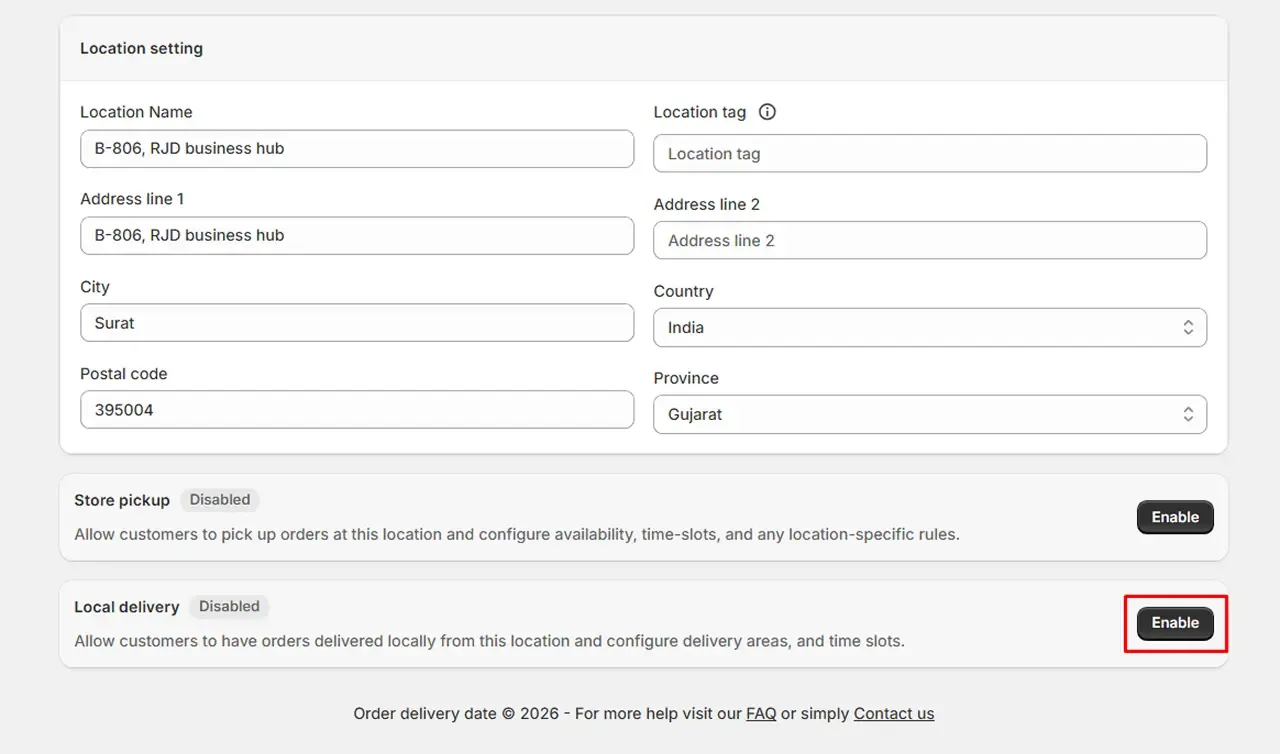
- Open its settings to add your delivery rules.
Step 4: Choose How Customers Qualify for Local Delivery
Stellar gives you two main ways to check whether a customer is eligible for local delivery.
Option 1: Postal Code Validation
Enter the postal or ZIP codes where you provide local delivery. Customers will only be able to select local delivery when their address matches an allowed code. Stellar also supports postal-code ranges and partial matches. This is helpful when you serve several nearby areas.
Option 2: Delivery Validator
The delivery validator allows customers to enter their postal code and check whether local delivery is available.
You can validate customers using:
- Maximum delivery radius
- Maximum driving distance
- Fastest route
- Shortest route
Step 5: Enable the Local Delivery Date Picker
Turn on the Location Date-Picker Status for local delivery. Once enabled, eligible customers can choose their delivery date and time.
You can then configure:
- Available delivery days
- Calendar start date
- Maximum booking period
- Minimum preparation time
- Time slots
- Time zone
- Same-day delivery
- Cut-off time
After adding all the required settings, click on Save button. Similarly, you can set up store pickup also using Stellar’s options.
Make your order management hasslefree with Stellar now
Local delivery and store pickup can make shopping faster and more convenient for nearby customers. However, simply enabling these options is not enough. Customers also need to know which dates, times, and locations are available.
Stellar Delivery Date & Pickup gives you the tools to create a clear scheduling experience. You control your delivery area, working days, preparation time, cut-offs, available slots, order capacity, and pickup locations. Customers only see options that work for your business.